English
English
Label chats by the words customers write or by what they're about, keep suppliers out of your sales flow, and treat the numbers you know your way: one salesperson, VIP, not a buyer, or muted.
21:40, and the sales phone buzzes: "Hot lead". It turns out to be a supplier offering to deliver rocks to your project, and the AI greeted them like a buyer. This really happens, and we don't like it. Your sales team deserves to know which chats are actually about buying, and someone who wants to sell to you deserves a short, polite answer, not a pitch.
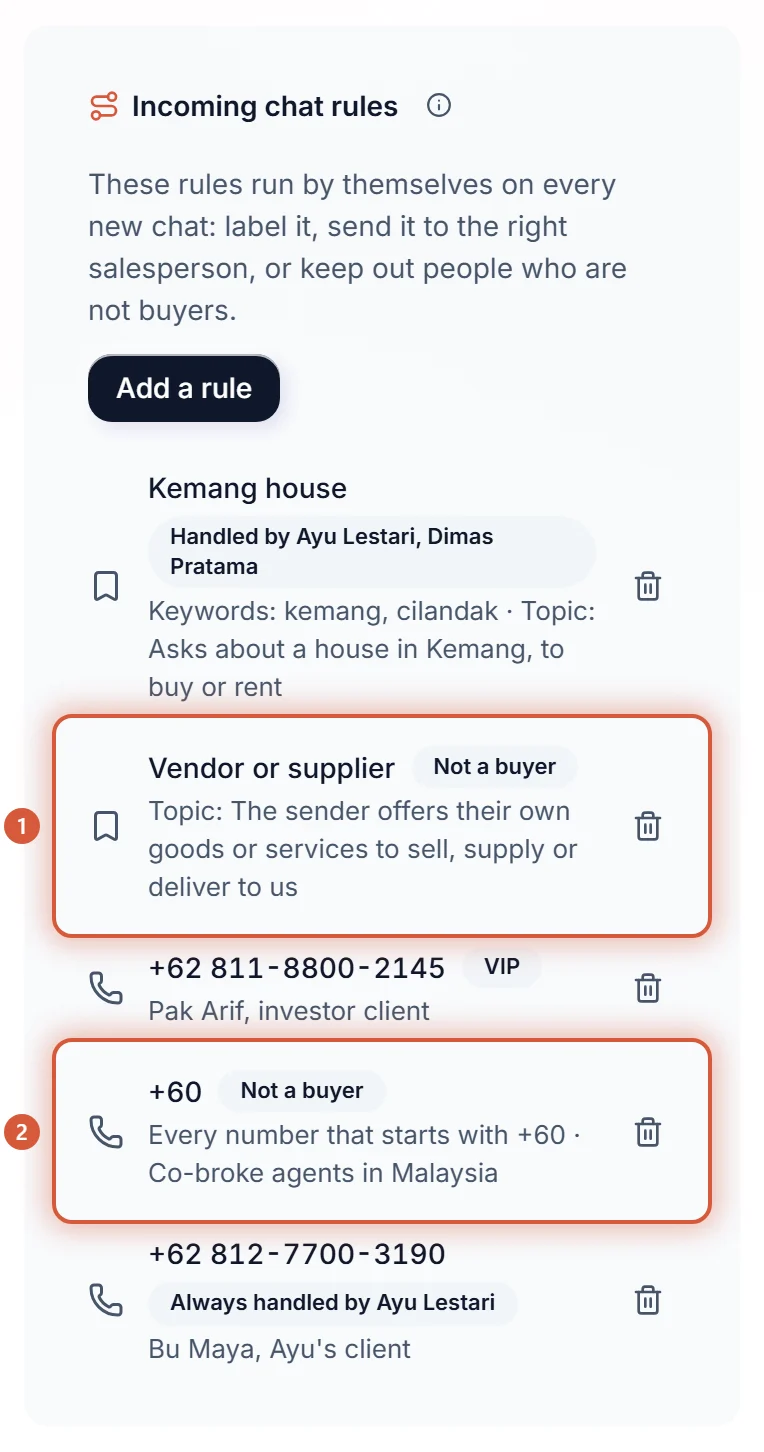
This page covers one card under Settings › Sales: Incoming chat rules. It is one list with two kinds of rule: a rule based on Chat content (it puts a label on the chat), and a rule based on the Sender's number (a number you know). The list is empty until you add a rule, and only Owners and Admins can change it.
| What you want to sort by | Pick in the rule |
|---|---|
| What the chat is about, such as "asks about a house in Kemang" or "a supplier offering goods" | Chat content. The chat gets your label when the customer writes one of your keywords, or when the AI sees it is about your topic. |
| Who sent it, such as a partner's number or every number from Malaysia | Sender's number. An exact match, no guessing. |
| One word, name or number you want to look up in the chats you already have | The inbox search box. See Inbox list, search, and lists. |
Kemang house. A name another label has, or a tag KIRA adds itself (such as sales, ad, spam or muted), is taken: pick another word.One kind of chat per label. A workspace keeps up to 10 chat content rules, and the dialog tells you when you reach that.
While the list is empty, the card shows Start from an example. Tapping one opens the dialog already filled in, so you only change what differs for your business and press Add rule.
| Example | What it fills in |
|---|---|
| Share chats by area with the salespeople who cover it | A label Kemang house with the keyword kemang |
| Keep out vendors and suppliers | A label Vendor or supplier with The sender is not a buyer on and the sentence "The sender offers their own goods or services to sell, supply or deliver to us" |
| Keep an existing client with the same salesperson | A number rule set to Are always handled by one salesperson |
| Put important customers first | A number rule set to Come first, as VIP |
| Mute a number that bothers you | A number rule set to Are muted |
If suppliers keep writing to your business number, start with Keep out vendors and suppliers.
A label can be picked two ways, and you can use both on one label. Keywords are found as you wrote them. The topic is read by the AI.
| The customer writes one of these keywords | Or the chat is about this topic | |
|---|---|---|
| What you write | Words or short phrases, such as kemang and cilandak. Type one, press Enter, and it becomes a chip. | One sentence in your own words: "Asks about a house in Kemang, to buy or rent" |
| How it decides | It finds your word in what the customer wrote. No AI is needed. | The AI reads the meaning, so other wording is caught too. |
| Use it for | A name customers always write the same way: an area, a project, a product, a brand | A kind of chat that comes in many wordings: a supplier offering goods, a question about instalments |
| What it misses | A chat that means it without writing the word, or writes it with a typo | Now and then the AI reads a chat wrong (see "When the AI gets it wrong" below) |
What to know about keywords:
kemang matches "rumah di Kemang?" but not "kemangi". Upper and lower case make no difference.rumah kemang matches only when those two words come together.For the topic, write one sentence about what the sender does ("offers a moving service"), not what they don't do: a plain, positive sentence is easier for the AI to read. It can be up to 300 characters.
kemang house; the inbox row shows it the way you wrote the label, Kemang house).A label with The sender is not a buyer off doesn't change what the AI says and doesn't raise priority. It just names the chat, so your team sees at a glance what it's about.
A label with salespeople under Salespeople who handle it also decides who gets the chat when the AI hands it to your team: only those salespeople. The Looks ready to buy notice for that chat goes to them alone too; a chat no rule names still tells the whole team. How it plays out for a team that competes for leads is in When your salespeople compete for leads.
Tap a rule in the list to open Edit rule, change it, and press Save rule.
| Rule | What you can change | What stays |
|---|---|---|
| Chat content | Its keywords, its topic, the salespeople under Salespeople who handle it, and The sender is not a buyer | The label's name, because it is already on chats as a tag |
| Sender's number | What happens to chats from the number, the salesperson who gets them, and the note | The number. To use another number, remove the rule and add a new one. |
A change applies to messages that arrive after it. Chats that already carry the tag, or that a rule already marked or closed, stay as they are.
To remove a rule, tap the trash icon on its row and confirm under Remove this rule?. Removing a chat content rule leaves its label on the chats that already have it. Removing a number rule means chats from that number are treated like any other chat from then on.
A chat marked Not a buyer, by a label or by a number rule, is treated as someone selling or supplying to you:
| What changes | The result |
|---|---|
| The Hot lead tag and the lead notice | None. Your rule outranks the AI: if the AI had already tagged the chat Hot lead, the tag comes off when the rule marks it |
| The tag not-buyer | Added beside the label's own tag, so the Not a buyer list in the inbox shows every chat marked this way, by a label or by a number. If the list isn't in the row yet, add it from + |
| The AI's reply | A short thank-you, no pitch, no questions about their needs or prices. For a partnership question, the AI offers to pass it to your team. |
| The quiet-lead follow-up | Not sent. See Following up quiet customers. |
| Reports › Sales | Not counted as a lead, shown as "vendors and partners left out" |
| The ticket panel, This ticket | Not a buyer (a lead filter marked it) with a Mark as buyer button |
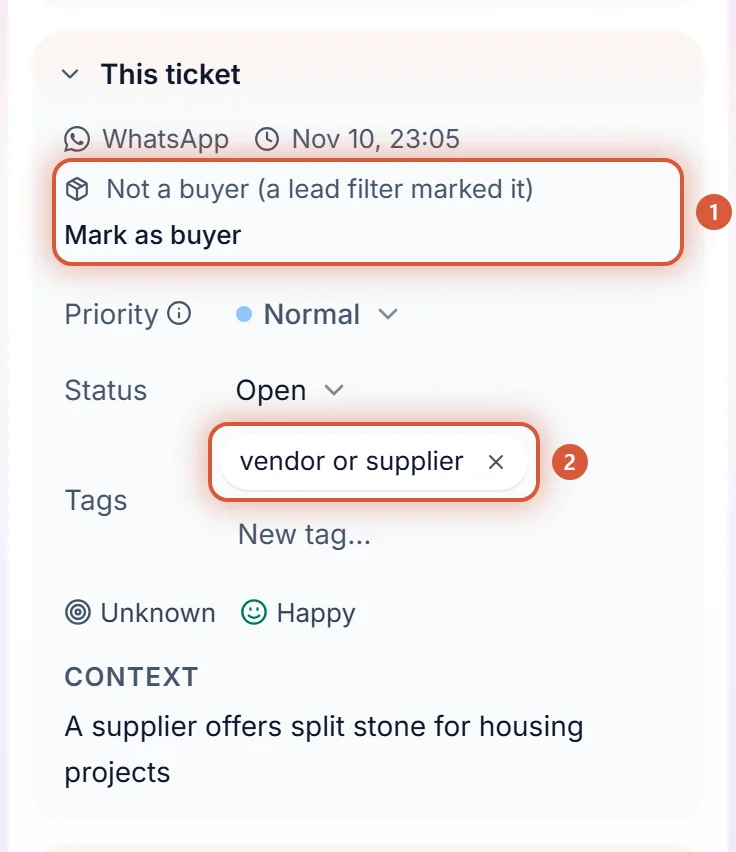
When a label is picked by its topic, the AI reads the chat, and the AI can be wrong. A buyer asking "can you deliver crushed stone to my site?" might read like a supplier. The AI only marks Not a buyer when the chat clearly offers to sell, supply or deliver to you, and when it's unsure it leaves the chat unlabelled. Still, glance over them now and then. A keyword is literal, so it can catch a chat you didn't mean too: pick words that only those chats use.
To undo it, open the ticket and press Mark as buyer under This ticket. Anyone on the team can. From then on the chat is a buyer's again, Activity records Marked as a buyer by a teammate, and no label or number rule marks that ticket again. The label's own tag stays; remove it like any tag if you want.
It can miss the other way too: a chat that should get a label doesn't. That chat simply carries on as normal. Add the tag by hand, then open the rule and add a keyword or reword its topic so it's clearer.
+62 812 3456 7890, or + and a country code like +60 for every Malaysian number.In the list, the rule shows its number with a short badge: Always handled by and the salesperson's name, VIP, Not a buyer or Muted.
| Chats from this number | What it does |
|---|---|
| Are always handled by one salesperson | Whenever the AI hands their chat to your team, it goes to the salesperson you picked, such as the one who brought this client in, and never moves to someone else on its own. Only that salesperson gets the Looks ready to buy notice, and the AI never closes the chat as spam. A number rule beats a label's Salespeople who handle it. |
| Come first, as VIP | Tagged VIP and ranked higher, and the AI never closes the chat as spam. If a teammate removes the VIP tag from a ticket, it isn't added back. |
| Are not from a buyer | The tag not-buyer and everything Not a buyer does above |
| Are muted | The message is kept, but the chat closes with the tag muted: no AI reply and no notice. You can still read it under the Done tab, and the Muted list in the inbox shows them all, whichever tab you were on (if it isn't in the row yet, add it from +). Activity says Closed: this number is muted in Sales settings. |
The VIP tag used is the first one under Settings › Routing › Advanced › VIP tags, or vip while that list is empty.
Priority answers one question: which chats should a person look at first.
| Goes up when | Goes down when | Doesn't raise it on its own |
|---|---|---|
| The customer is upset | The AI is handling the chat confidently | How long it has waited |
| The customer wants to buy, or carries a VIP tag | We're waiting on the customer's reply | The order it arrived in |
| The customer is known or verified | A label | |
| The customer asks for a person | A long chat, or a big order value |
A number rule raises priority only through the VIP tag it adds. Among chats with the same priority, the one that has waited longest is served first. How to change priority by hand is in Notes, tags, and priority.
Sales teams asked us for keywords, and for an area or a project name a keyword is the right tool: the word is in the chat or it isn't. But a keyword only knows the wordings someone wrote down. It misses the next one, and every language nobody listed. So a label takes both: your own words for the sure cases, and one plain sentence the AI reads for the rest. Your team's correction always wins, for good. Numbers are the simple case: there, certainty beats understanding, so the rule is an exact match.