English
English
How to mark an item as sold on Facebook Marketplace on your phone or computer, how it differs from deleting, and the step people forget: their chatbot.

To mark an item as sold on Facebook Marketplace, open Marketplace, go to the list of things you're selling, and choose mark as sold on that listing. Other buyers stop seeing it, and buyers who already messaged you about it are usually told. The step people forget sits outside Marketplace: your shop's Facebook Page, Instagram and WhatsApp, and the chatbot answering there, still don't know the item has gone.
Saturday lunchtime, the three-seater teak sofa in your secondhand furniture shop sells through a Marketplace chat. The buyer turns up with a pickup truck, you shake hands, and you mark the listing sold with a grin. Three taps, done.
Sunday night, someone writes to your shop's Facebook Page: "Is the teak sofa in the photo still available? I'll come by tomorrow morning." The Page's chatbot answers cheerfully, "Yes, it is!", price and all. On Monday morning you're the one sending the apology, and it feels a lot worse than yesterday's three taps.
Here's where we stand: marking as sold on Marketplace is easy; what lets buyers down is every other place still selling the item. One item usually shows up in several places at once. Update only one, and the buyers everywhere else pay for it.
Menu names shift a little between app versions and languages. These are the English names as we checked them in November 2026.
In the Facebook app on your phone:
On a computer:
From then on, other buyers don't see the listing. Marked the wrong one? The same listing can be marked available again (Mark as available). If you're holding the item for one serious buyer, mark it Pending first, then sold once it has actually been collected.
| Choice | Use it when | What happens |
|---|---|---|
| Mark as sold | The item has been collected or paid for | It leaves other buyers' searches, the record stays, and it can be undone |
| Mark as pending | A serious buyer has it on hold | Other buyers can see it's in progress |
| Delete the listing | The sale is off, or the listing was wrong | The listing is gone entirely |
We'd rather mark as sold than delete. A record of what sold is useful: you learn what goes fast, and a buyer who comes back asking doesn't hit a dead end.
Here we need to be straight with you. A Marketplace listing you post from your personal profile is answered through your personal Messenger, not through your Facebook Page's inbox. Tools connected to a Facebook Page, KIRA.id included, don't read those chats, and we don't promise anything about Marketplace chats. You keep answering those yourself.
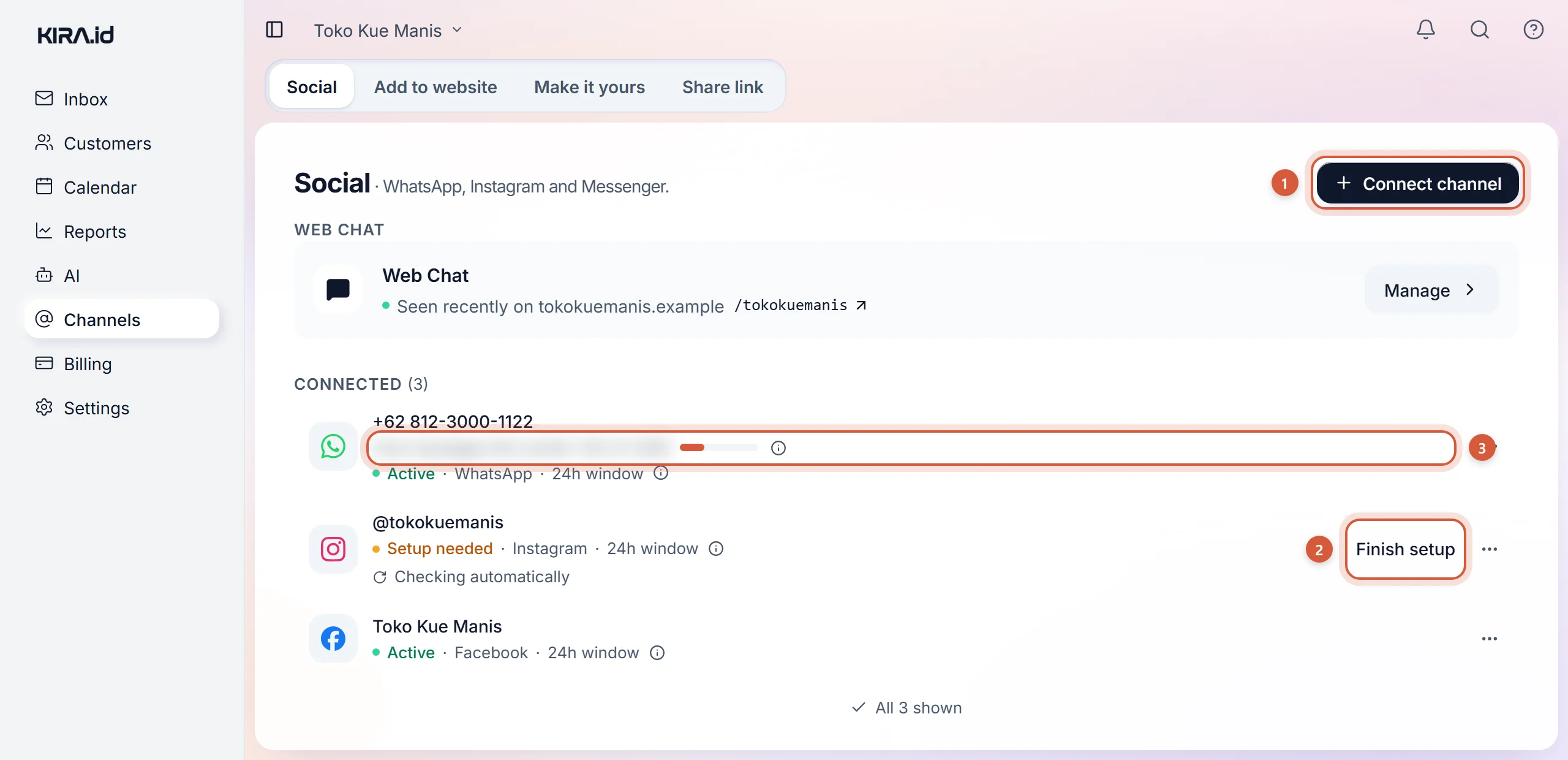
What KIRA.id does answer is every other door into your shop: Messenger to your Facebook Page, your business Instagram DMs, your business WhatsApp, and the web chat on your site. Those are the doors where that teak sofa was still "for sale", because the catalogue the AI reads hadn't changed.
In KIRA.id, the AI answers from your Sources: a catalogue in a Google Sheet, website pages, a PDF or a text. So when something sells, mark it there too. Don't delete it:
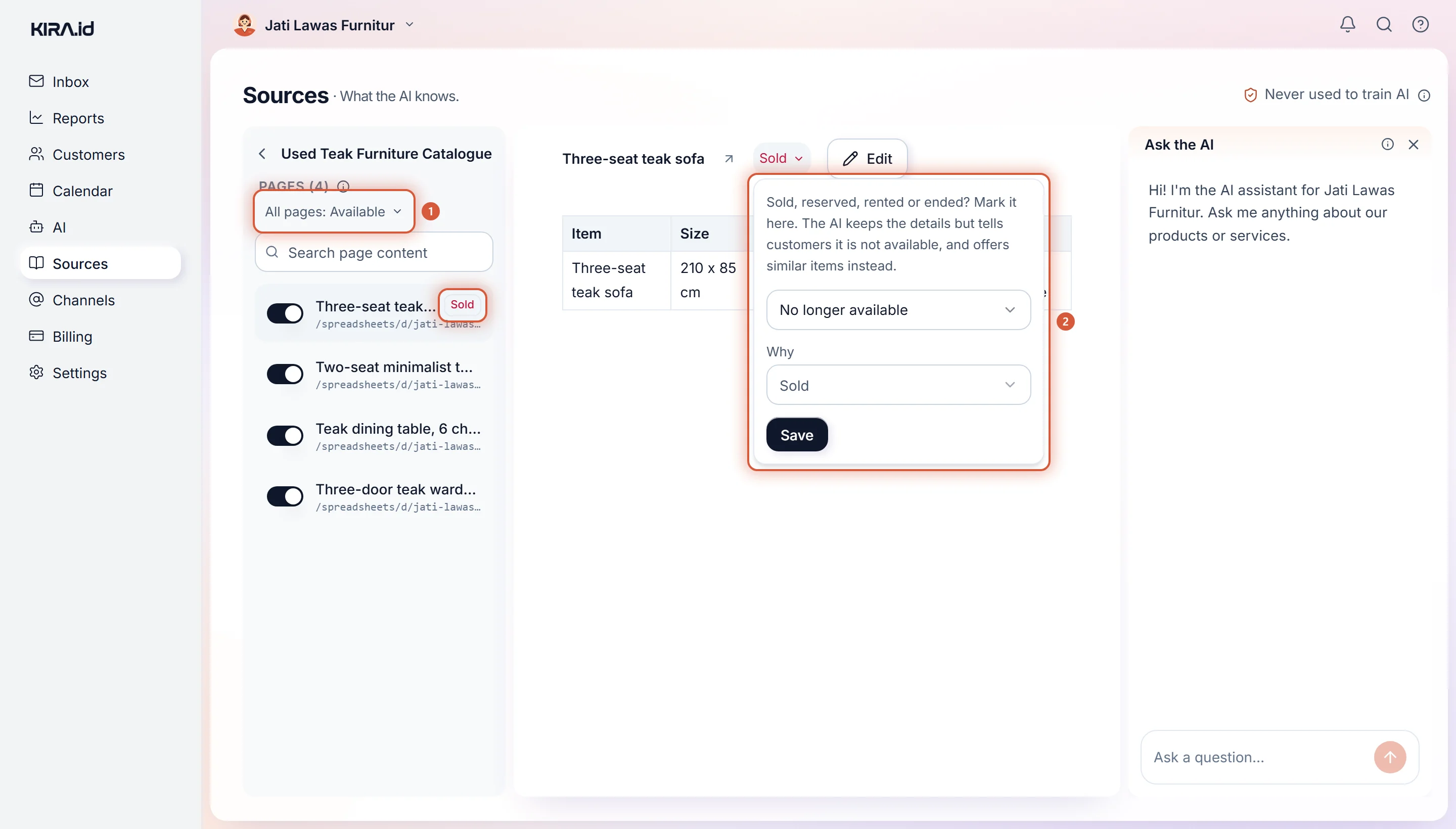
One tab for everything, one item per row? Write the status in a column of its own, such as a Status column reading Sold. The AI reads that row and treats it as sold. A Sheet linked through Google updates on its own a short while after you stop editing. Need it right now? Press Regenerate in the source's menu.
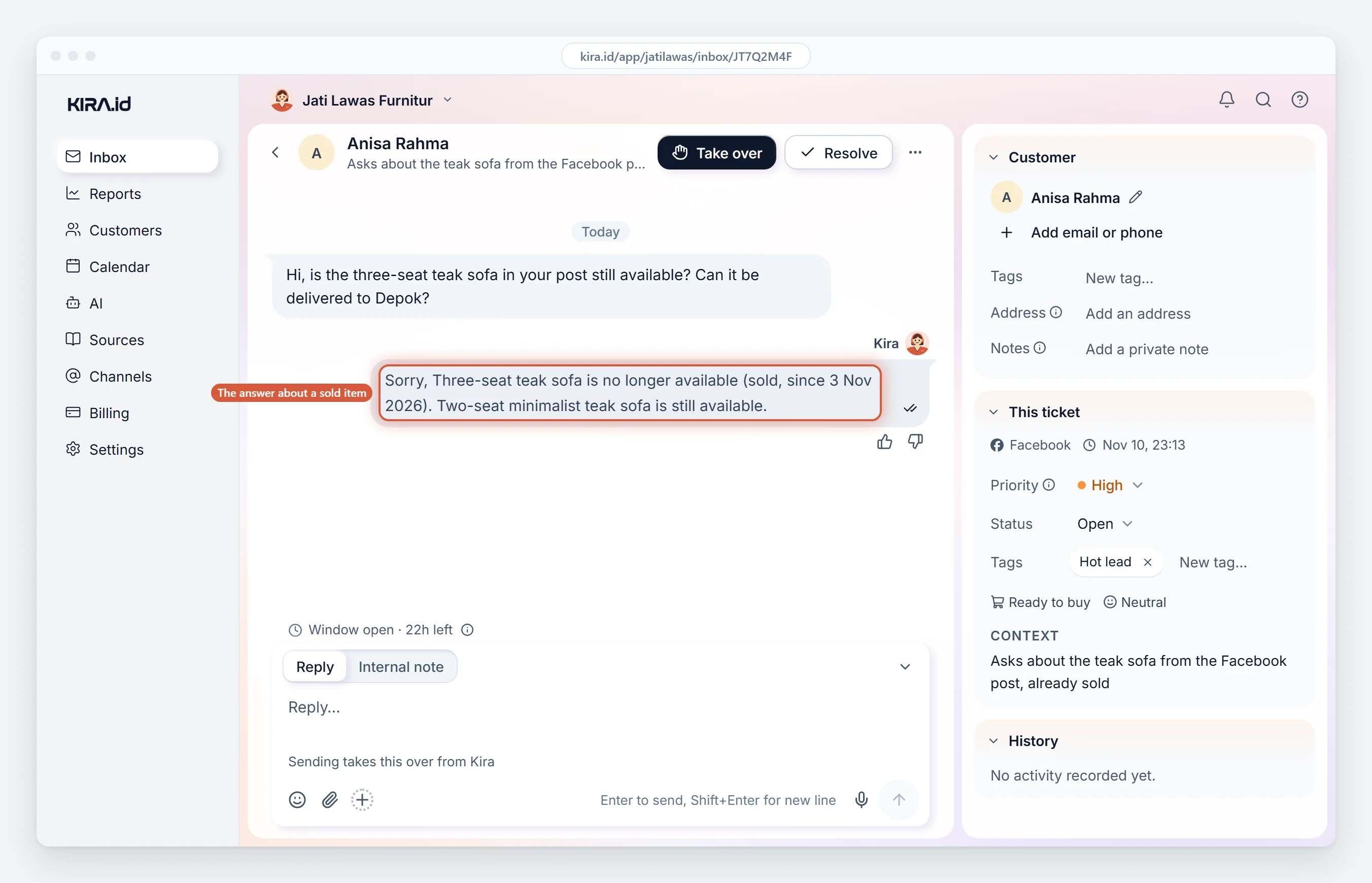
From then on, a buyer who asks on your Page or WhatsApp gets the honest answer: that sofa has sold, and here's a similar one that's still here. The AI still knows the item, never offers it again, and never gives its price as today's price.
| Marketplace | Facebook Page | |||
|---|---|---|---|---|
| Who answers the chat | You, from your personal Messenger | KIRA.id's AI and your team | KIRA.id's AI and your team | KIRA.id's AI and your team |
| How to mark it sold | Mark as sold on the listing | Mark it in Sources | Mark it in Sources | Mark it in Sources |
| If you forget | Other buyers still find it | The AI still offers it | The AI still offers it | The AI still offers it |
One mark in Sources covers the last three doors at once, because all three are answered from the same knowledge. So the habit is just two steps: mark it on Marketplace, mark it in Sources.
These examples are made up.
A secondhand furniture shop in Depok. Every item is a row in a Google Sheet with a Status column. When something sells on Marketplace, the owner changes its status to Sold and puts the phone down, and the AI follows on its own shortly after. A question on the Page about that item is answered "it has sold", with two similar pieces offered instead.
A used phone counter. Stock comes and goes daily, and each brand has its own tab. When every unit of one brand is gone, that tab is marked No longer available, then set back to Available when new stock lands.
A used motorbike showroom. One website page per bike. A bike that sells is marked Sold on its own page. A mark on one page beats the mark on the whole source, so every other bike on the same site keeps being offered as usual.
Open the menu, then Marketplace, go to your Marketplace profile and Your listings, and tap Mark as sold on the listing that sold.
Marking as sold hides the listing from other buyers but keeps the record, and can be undone. Deleting removes the listing completely. Keep deleting for listings that were wrong or sales that are off.
Yes. Open the same listing and mark it available again. Handy when a buyer doesn't show up.
A listing posted from a personal profile is answered through your personal Messenger, not your Page's inbox, so tools connected to a Page, KIRA.id included, don't read it. What the AI can answer is messages to your Facebook Page, Instagram DMs, WhatsApp and your shop's web chat.
A sale is a good day. Don't let it end with an apology: mark it sold on Marketplace, then mark it in Sources, so every door into your shop says the same thing. The full steps are in the guide to sold listings and ended promos, and connecting a Facebook Page is in the Instagram and Messenger guide. Haven't switched on replies for your Page yet? Read Messenger auto reply for a Facebook Page: the settings and their limits, then marketplace versus your own WhatsApp: who owns the customer. Want to try it in your shop? Tell us what you need.