English
English
How to turn off Meta Business Agent in WhatsApp Business: pause or delete it, stop AI auto replies and the AI handoff list, then prove it has gone quiet.
To turn off Meta Business Agent in WhatsApp Business, open Tools › Meta Business Agent › Response settings › Delete your AI agent, then choose Pause AI replies (for now) or Disconnect and delete my AI (for good). That is also how you stop AI auto replies in WhatsApp Business, and the AI handoff list in the Chats tab belongs to the same agent. The path comes from the WhatsApp Help Center as of November 2026.
Bu Ratna sells batik fabric from her home in Solo. One morning a regular customer writes back: "Thanks Bu, such a quick answer!" Bu Ratna smiles, then freezes. She has not replied to anything since last night.
That odd feeling, a message going out in your name that you never wrote, is the most common reason people type how to turn off meta business agent. We understand it completely. And our opinion is simple: whoever speaks for your business must always be something you can overrule, and switching it off should never be harder than switching it on.
We are not Meta, and we have not pressed this button on every phone. The paths in this post come from the WhatsApp Help Center as of November 2026, not from a screenshot in a group chat. The Help Center itself uses more than one name for the same menu (Meta Business Agent, AI agent, Your AI agent), and it names the key button differently on Android (Disconnect AI) and iPhone (Delete your AI agent). If the label on your phone is slightly different, pick the closest match under Tools.
That is why the "how to be sure" part below matters as much as the steps. A menu that looks off proves nothing.
| Pause AI replies | Disconnect and delete my AI | |
|---|---|---|
| What it is | Temporary | Permanent |
| What happens | The agent stops replying in new chats from then on | The agent is removed from your number |
| Greeting and away messages | Still off | You can switch them back on |
| Meta using your messages for its AI | The Help Center only says this stops once the agent is deleted | Stops |
| If you want it back | The agent is still there | Set it up again from scratch, and it starts knowing nothing |
Our advice: pause if you want to try a week without the agent. Delete once you have decided who your first responder is, or if you want your greeting message back.
To pause (for now):
To delete (for good):
Want to keep the agent's data before you delete it? The Help Center gives the path in the phone app: Tools › Your AI agent › Download your data, then request the report.
For one customer only: open their chat, tap the contact's name, then Include your AI › Remove AI. The agent stops replying in that chat and stops learning from your replies there. Quicker still: just reply yourself. Once you reply by hand, the agent stops in that chat until you switch it back on.
The platform version for larger businesses: a technical team or a partner set it up, so ask them to switch it off.
Can't find the menu? If there is no Meta Business Agent or AI agent under Tools, the Help Center says the agent is not available for your business yet, and you have nothing to turn off. Make sure the app is up to date before you conclude that.
The setting is there but will not turn off? Keep a screenshot and contact WhatsApp Business support. That is a problem on Meta's side, not your number.
Automatic replies that answer questions in different words each time come from Meta Business Agent, so the steps above are the way. Greeting and away messages are not AI: they are fixed texts you wrote yourself, and while the agent is connected they are switched off anyway. The difference, and how to bring your greeting message back, are in WhatsApp Business auto reply.
One more mix-up we see: Meta AI. The Meta AI business assistant helps you with your own tasks, for example from the app's search bar, and never replies to customers. A "turn off Meta AI" tutorial is about something else.
AI handoff in the Chats tab is the list of chats Meta Business Agent thinks you need to answer yourself. The Help Center does not mention a switch that hides it. All you can set is when chats leave it, under Manage AI handoff list at the bottom of the list: right after you reply (the default) or 24 hours after you reply. A chat that is inactive for seven days drops off by itself, but stays in the Chats tab.
The list is filled by the agent. So if you want no more AI handoff, pause or delete the agent as above. Before you do, open and answer the chats still in the list: every row there is a customer waiting for a person. What AI handoff means, and what a tidy handoff looks like for a team, is in what AI handoff means.
The proof is in the chat, not the menu:
A pause applies to new chats. If an existing customer still gets replies from the agent, remove the AI from that chat with Include your AI › Remove AI, or delete the agent altogether.
A small habit we recommend: once a week, send a test message like that. Five minutes, and you know exactly who is speaking in your name.
This is the question people forget. Switching off an automatic answerer means late-night messages go back to waiting for a human hand. Before you press the button, decide on one of four things: you answer yourself, teammates take turns, you set an away message that is honest about when you are back, or another answerer that you pick yourself. All of them are legitimate. What is not legitimate is not choosing, because a customer asking at ten at night will not wait until you get around to thinking about it.
If you deleted the agent, you can switch your away message back on. Honest wording to start from is in after-hours message examples.
We have no access to your Meta settings, and we have not tested how Meta's agent runs next to KIRA.id on one number. Our rule: one first responder per number. If you want KIRA.id to answer, switch the agent off on Meta's side. If you want Meta's agent only, do not turn on KIRA.id's AI.
On the KIRA.id side, switching the AI off takes one tap, on two levels:
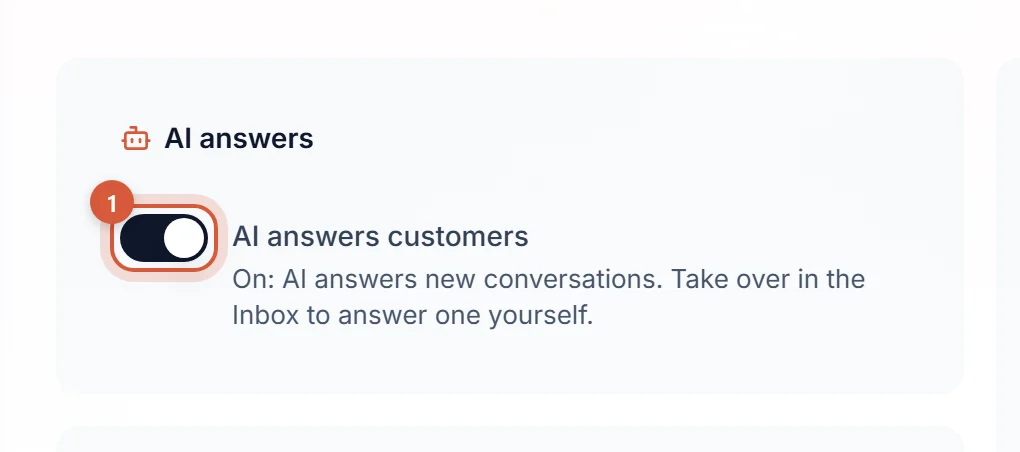
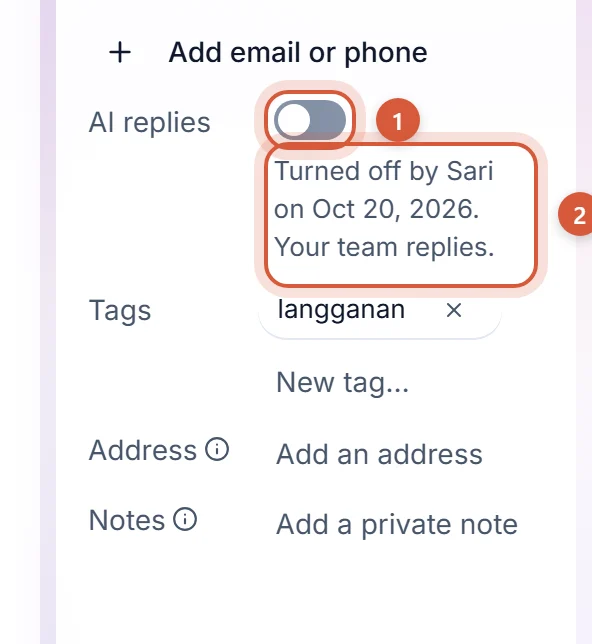
Switching off in KIRA.id deletes nothing: your conversations, customers and knowledge sources stay where they are. The full steps are in the guide Turning the AI on and off. To answer just one conversation yourself, press Take over on its ticket, as described in Taking over a conversation, and giving it back.
For how one number lives in both the app and KIRA.id, read Keep using the WhatsApp Business app.
Open Tools › Meta Business Agent › Response settings › Delete your AI agent (on Android, Disconnect AI), then choose Pause AI replies or Disconnect and delete my AI. Then prove it with a test message from another phone.
The same way, because AI replies in the app come from Meta Business Agent. For one customer only, open their contact info and tap Include your AI › Remove AI.
The AI handoff list comes with Meta Business Agent, and the Help Center mentions no separate switch for it. Answer the chats still in it, then pause or delete the agent.
Tools › Meta Business Agent › Response settings › Delete your AI agent › Disconnect and delete my AI, fill in the survey, then Submit. If you ever want it back, you set it up from scratch. There is no need to delete your business account.
The Help Center does not say chats are deleted. What it does say: once the agent is deleted, its AI knowledge is gone and your messages are no longer shared with Meta to improve its AI. We have not tested it ourselves, so read the note on screen before pressing anything that says delete. In KIRA.id, switching the AI off deletes nothing.
KIRA.id has a switch for the whole business and one per customer, with the consequences written out. For Meta, follow its own settings.
If you want an answerer you can always overrule, and one that hands chats to a person with the reason written down, see our handoff rules. To meet the agent first, read What is Meta Business Agent. Want company while you set it up? Talk to our team.