English
English
AI customer service for Shopify stores in Indonesia: add the chat in theme.liquid, let the AI read your own store pages, and skip the cart and checkout.

11:10 pm. Shopify pings: an abandoned cart. Then another. You know exactly why, because the same question landed in your Instagram DMs this afternoon: "If the M is too small can I swap it? How much is shipping to Makassar?" Shoppers on your site have the same question, but there's nobody to ask. So they close the tab.
Our view is simple: a Shopify store doesn't need a chatbot trained from scratch, it needs an AI that reads your own store. The size exchange policy, shipping, fabric details, you've already written all of it on the site. It's a shame if the AI never reads it, and a bigger shame if you have to retype it all into some "knowledge base".
This post shows two things: how to add the KIRA.id chat to Shopify, and how to have the AI read that same store so its answers are right.
Shopify stores in Indonesia usually try one of these first:
The shared problem: the tool doesn't know your store. Every answer has to be rewritten by you, and every price change means editing two places.
In KIRA.id, open Channels → Add to website, pick Chat button in the corner (marked Most used), and press Copy code. Under Built with, choose Shopify to see the steps in the console.
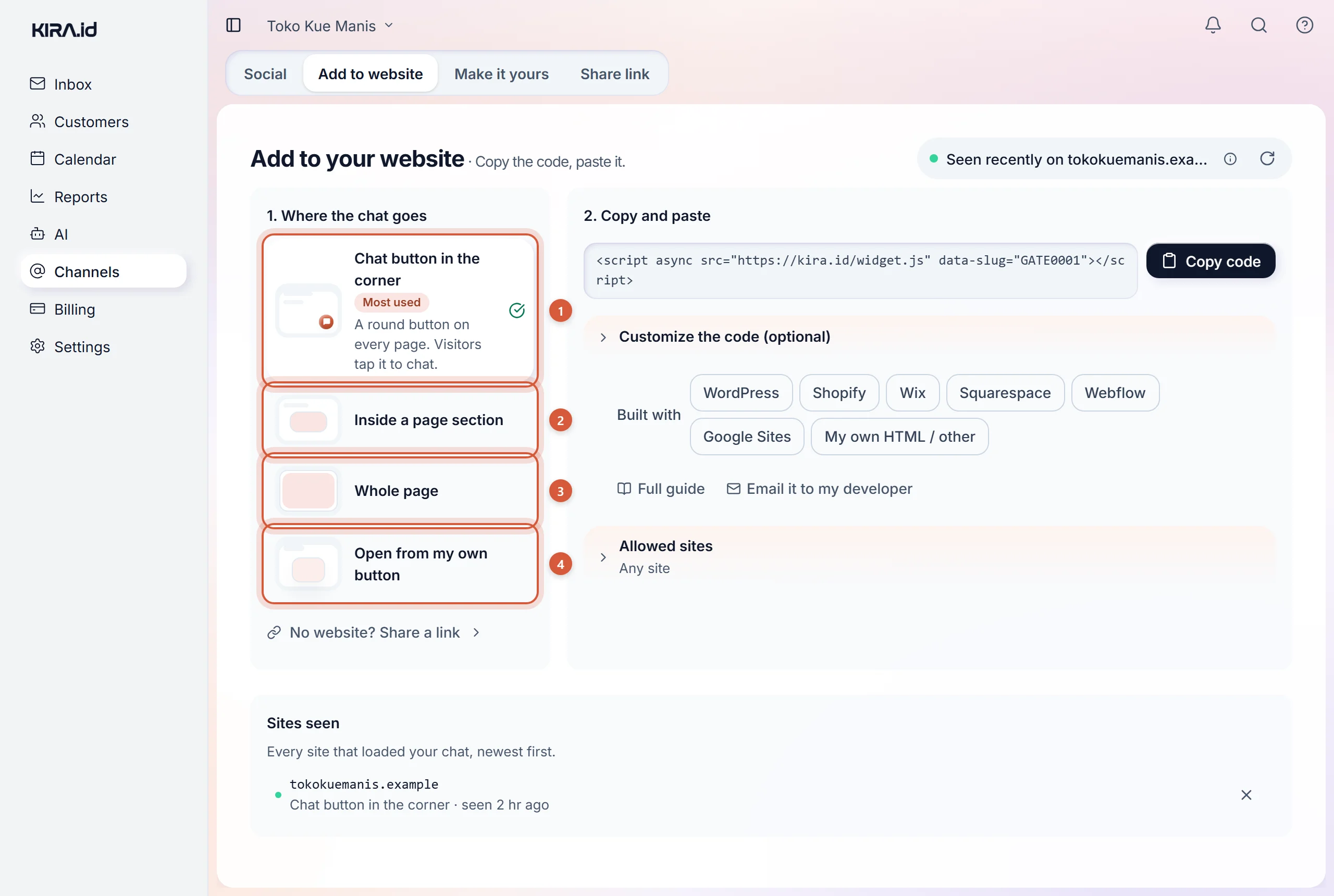
For a button on every page of the store:
layout/theme.liquid.For a chat on one page only, say your "Contact us" page, pick Inside a page section, then:
Back in the console, press Check after opening your store. The status changes from Not on a website yet to Seen recently on ... once a visit loads the chat. If someone else manages the store, Email it to my developer writes the email for you.
This is how the button and its bubble look on a site, from our own test on a plain little website:
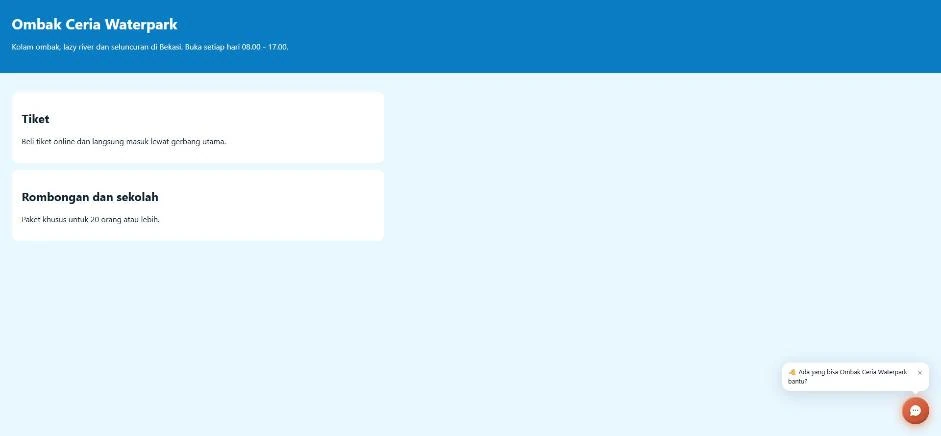
The button takes the Brand colour you pick, and the greeting bubble shows once per session. That's explained in the guide to the chat button and its bubble.
Now the part that matters most. Open Sources, press New source, then the Website tab. Paste your store's address, choose The whole website, then press Skip some pages.
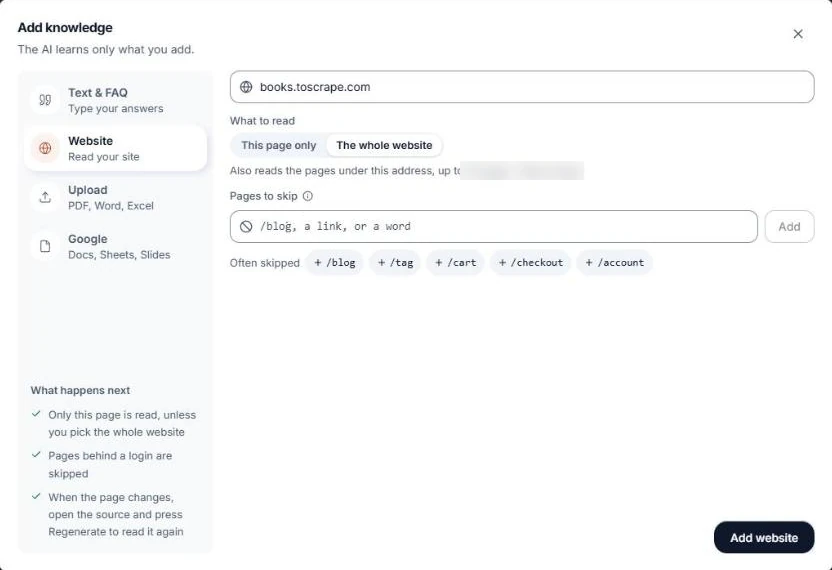
The cart, checkout and account pages hold nothing the AI needs. Tap the Often skipped chips: /cart, /checkout, /account, and /blog if your blog is long. Your plan's page limit then goes to the product, collection and policy pages that actually answer shoppers. Press Add website.
Two things worth knowing:
Prices change for a promo? Press Regenerate in the source's ⋯ menu. Pages you switched off stay off.
| A typical chat app | A keyword bot | KIRA.id | |
|---|---|---|---|
| Install | An App Store app | An app and a hand-built menu | One line in theme.liquid |
| Where answers come from | You, when you're online | Answers you type one by one | Your own store pages, plus files and FAQs |
| Everyday phrasing | Waits for an admin | Often fails | Understood and answered |
| When the AI doesn't know | There's no AI | "Sorry, I didn't understand" | Honest, and passes it to your team |
| A promo changes | Edit by hand | Edit the menu | Press Regenerate |
A sample local T-shirt brand in Bandung. Most questions are about the size chart and size swaps. The "Size guide" and "Returns" pages are read, so the AI answers "if the M is too small can I swap?" straight from that policy.
A sample skincare store in Jakarta. Shoppers ask about ingredients a lot. Its product pages are long and built with JavaScript, and they're read just fine. Its beauty-tips blog is skipped so it doesn't eat the page limit.
A sample baby goods store in Surabaya. Shipping costs and delivery times live on the FAQ page. It also adds a Google Sheet of shipping costs per city as a second source.
theme.liquid is enough, because every page uses it.Yes, through a website source. The AI reads your store's product, collection and policy pages up to your plan's page limit. An important page that didn't make it in can be added by its own link.
No. The code loads without holding up the page, and the chat adds no trackers or analytics to your store.
Yes, if your orders live in a Google Sheet connected under AI › Order lookups. An order is only ever shown to its own buyer.
They all land in the same Inbox, answered by the AI from the same knowledge. See also AI customer service for online stores.
A cart abandoned at 11:10 pm isn't always about price. Often the shopper just needed one answer, right now. A chat that reads your own store gives them that answer, and you wake up to orders instead of a queue of questions.
Install steps for every site builder are in the guide to adding web chat to your website, and the general walkthrough is in how to add live chat to your website. Want help setting up your Shopify store? Get in touch.